Design System Version Migrator
A Figma plugin that takes the manual work out of moving to a new component library.
As our Dice design system evolved, our Figma components began drifting away from their engineering counterparts. To bring them back into alignment, another designer and I rebuilt the library with updated properties and APIs.
But publishing a new V2 library meant designers would need to manually replace components across hundreds of existing screens.
Rather than make every designer do that work themselves, I built a Figma plugin to automate the migration, making it easier for teams to adopt V2 without rebuilding their designs.
- Company
- BetMGM
- Role
- Senior Product Designer, Design Systems
- Timeline
- January–March 2026
- Team
- Supporting migration for 30+ designers

Background
When Figma and code fall out of sync
As Dice continued to grow, we started hearing recurring feedback from product teams that handoff to engineering was becoming increasingly difficult.
After looking into it, another designer and I discovered that many of our Figma components no longer aligned with what engineering had implemented in code.
This kind of drift is fairly natural for a young design system. Component APIs were changing in code, and nothing formally carried those changes into the Figma library.
Over time, those small differences started causing larger problems.
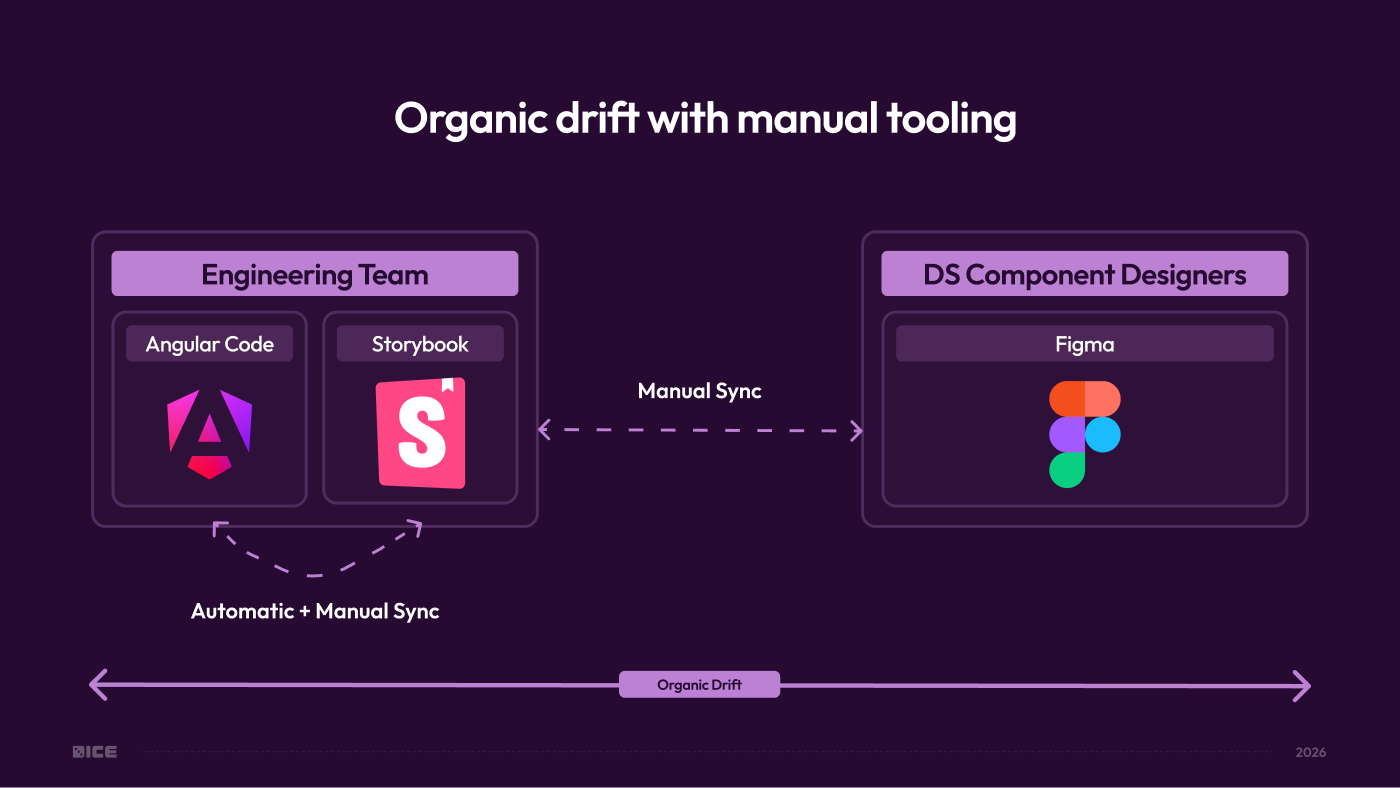
Where the libraries drifted apart
- Mismatched properties
- Component properties in Figma didn’t always match the options and behaviors available in code.
- Missing functionality
- Some capabilities existed in engineering but weren’t represented in the design library.
- Unpredictable handoff
- Designers could create experiences in Figma that didn’t directly translate to what engineering could build.

Bringing the libraries back together
Another designer and I audited Dice component by component, comparing Figma against the properties and functionality available in Angular and Storybook.
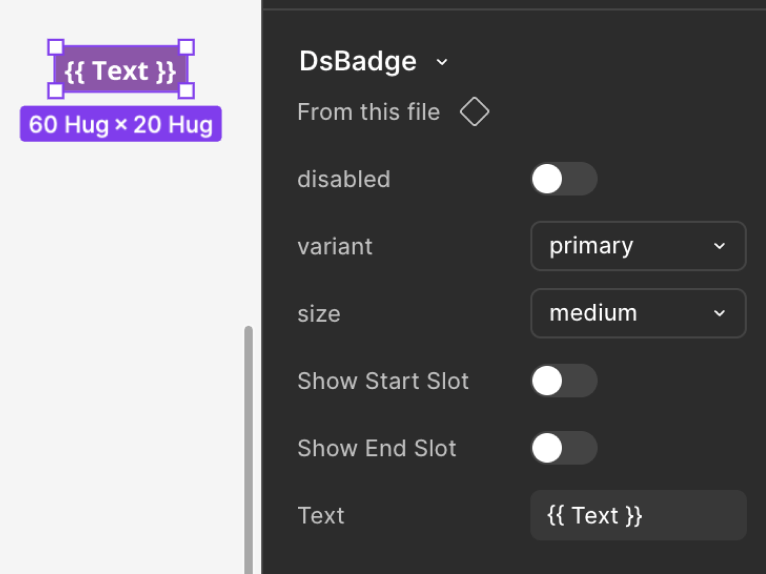
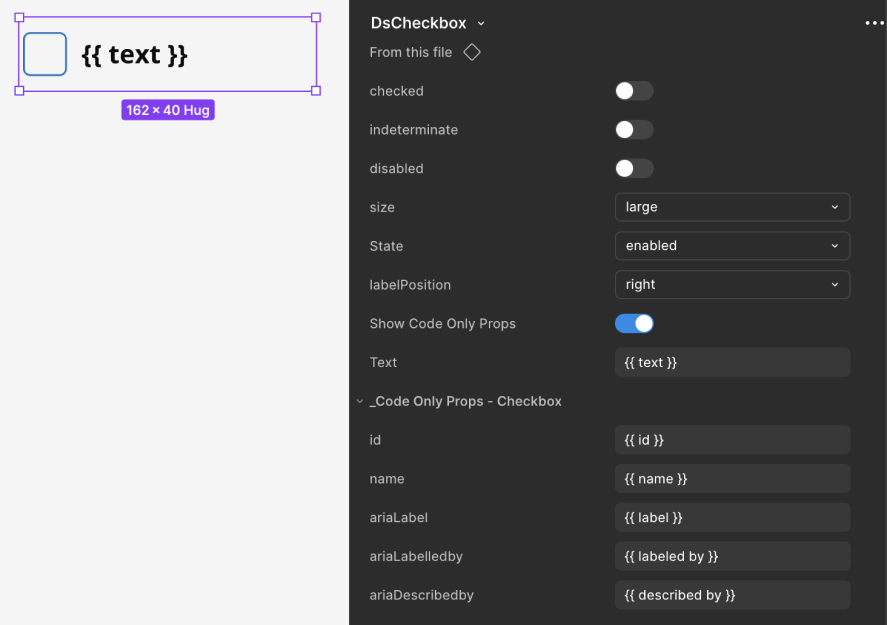
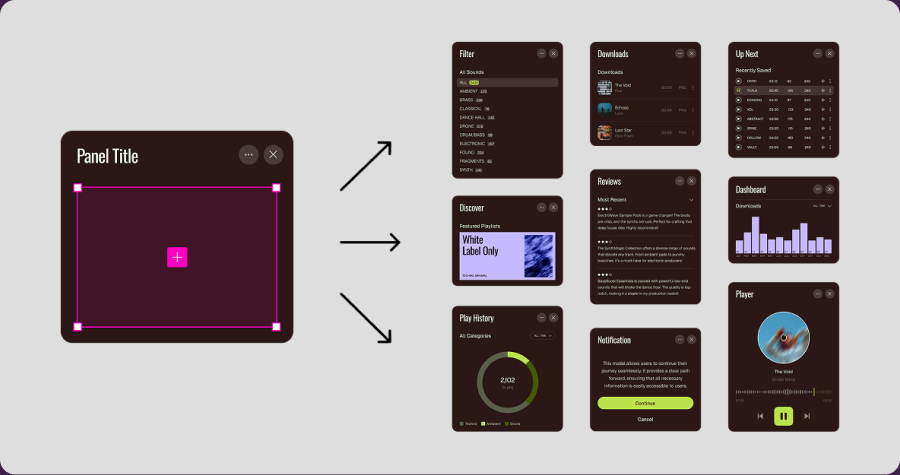
We updated naming conventions, component properties, slot functionality, and performance to bring Figma into closer alignment with code.
-
Code and design props
-
Code-only props
-
Figma slots
-
Memory and performance
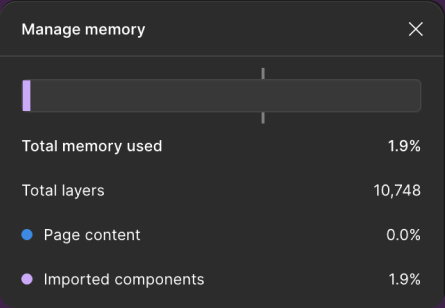
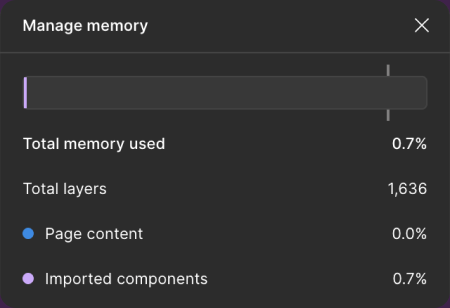
The catch was that nearly every component required a breaking change. Rather than disrupt existing product files, we decided to publish a separate V2 library.
Visually, the components remained largely the same. What changed was how they were built and configured.

Accepting a
breaking change
Integrating to the V2 library required manual swapping one by one
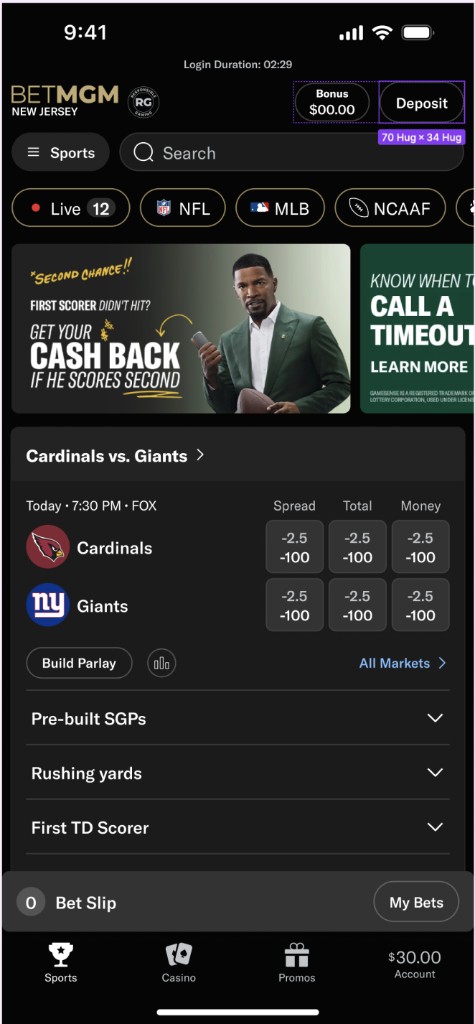
Because V2 was an entirely new Figma library, designers couldn’t simply accept a library update. They would need to go through their existing design files, find every instance of a V1 component, and manually swap it with its V2 replacement, one by one.
Across hundreds of screens and multiple product teams, this would be a significant amount of manual work. And the harder we made it to migrate, the more likely designers were to keep using V1, defeating the purpose of building a better library.
How might we
Make it easier for designers to adopt V2 without manually rebuilding their existing work?
Solution
Making migration the easy part
I built a Figma plugin that turns a manual, component-by-component migration into three simple steps.
-
01
Scan
Find V1 components across a selected frame or page.
-
02
Review
See the suggested V2 replacements and adjust properties before swapping.
-
03
Swap
Replace components individually or in bulk while preserving supported content and settings.
Instead of rebuilding existing designs, teams could migrate entire product flows with just a few clicks.

Process
How the plugin was built

-
01
Defining the rules before building
Before writing any code, I documented how the plugin should work, mapping V1 components to V2, defining how properties would transfer, and accounting for cases without a direct match.
I refined the requirements with Claude, creating a clear set of rules to guide development rather than figuring out the logic as I went.
-
02
Building predictable component swaps
Using Claude Code and Kiro, I built the first working version in about a week.
The plugin scans a frame or page, identifies V1 components, and suggests their V2 replacements. Rather than relying on AI to guess the correct swaps, I used predefined mappings from our audit to make the results predictable and consistent.
I also tested different component configurations to make sure supported content and properties carried over correctly.
-
03
Testing with real product teams
Once the initial version was working, I invited design system advocates to test the plugin in their actual product files.
Their feedback led to two key improvements: bulk swapping, allowing designers to migrate multiple components at once, and editable properties, giving them the ability to adjust V2 components before swapping.
-
04
Helping teams make the move
To support the rollout, I led three training sessions covering what changed in V2, why those changes mattered, and how to use the plugin.
The goal was to make migration easier to understand and give designers the confidence to update their existing work.
Outcome
Making the better library easier to adopt
By removing much of the manual migration work, the plugin helped teams transition to V2 without rebuilding their existing designs.
- Components mapped35
- V1 components paired with their V2 replacements.
- Design files migrated80%
- Now referencing V2 components, with remaining files intentionally left on V1 to avoid disrupting active engineering work.
All new design work now uses V2, with remaining files transitioning as existing development wraps up.
Lessons learned
-
01
A better system only matters if people can adopt it
Improving a design system doesn’t end when you publish a new library. You also need to consider what it takes for teams to move to it.
This project reinforced how important the adoption experience is. Making migration easier meant designers could actually benefit from the improvements we’d made.
-
02
AI works best when you know what you’re building
The biggest time savings came from defining the requirements, working through edge cases, and establishing clear rules before writing code.
AI helped me build faster, but understanding the problem and knowing what I wanted to create made that possible.